Guide
Sync your library with Google Drive
Share your books and bookmarks between supported browsers connected to the same Google Drive account.
Google Drive keeps your ReadMore library in sync across machines. Install ReadMore and connect Drive in each supported browser to share your books, bookmarks, labels and reading position.
What Drive sync gives you
- Your books, metadata, and bookmarks live in
My Drive/ReadMore/. - Open the same book in another ReadMore installation connected to the same Google account and resume from your synced position.
- Nothing on our servers - your data goes browser-to-Drive over Google's own APIs.
Connect Drive to ReadMore
1. Open the Integrations section
Right-click the ReadMore icon in your browser toolbar and choose "Options", or open ReadMore → Options from the popup. Click the Integrations tab.
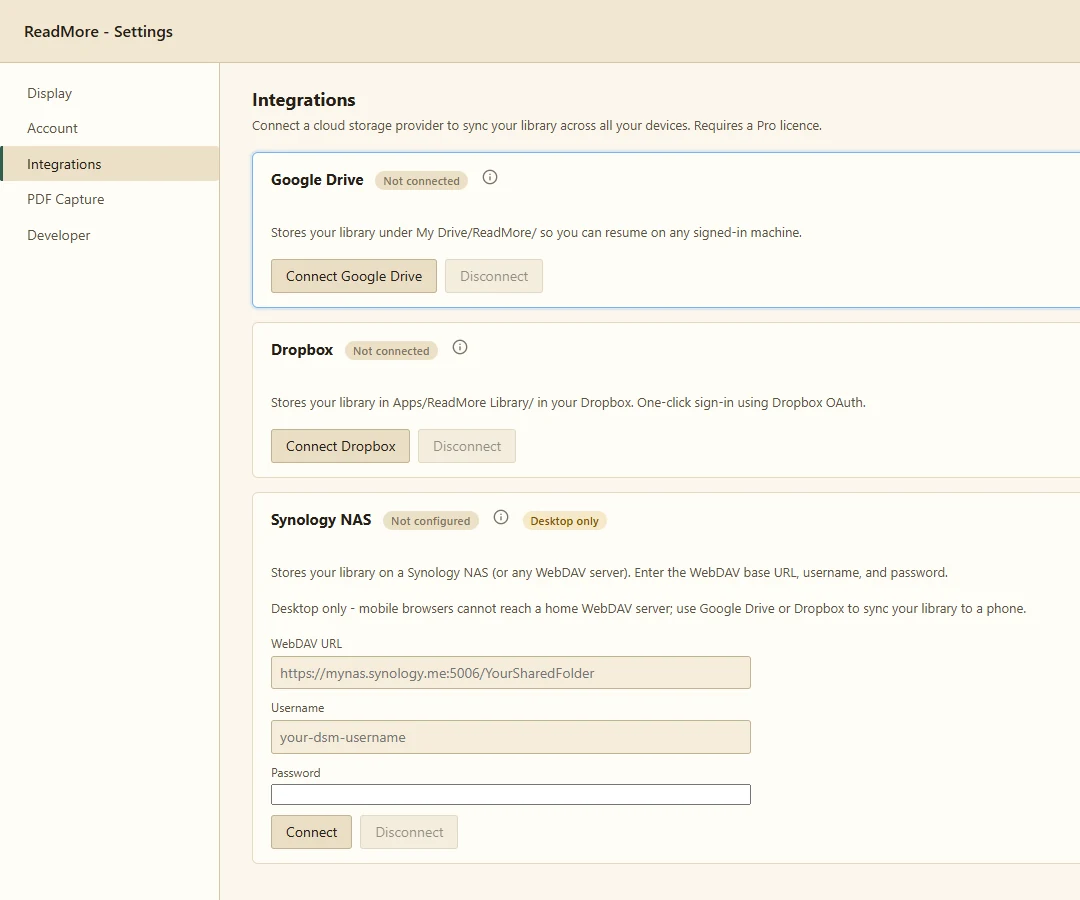
2. Click Connect
Click Connect on the Google Drive card. A Google sign-in window opens.
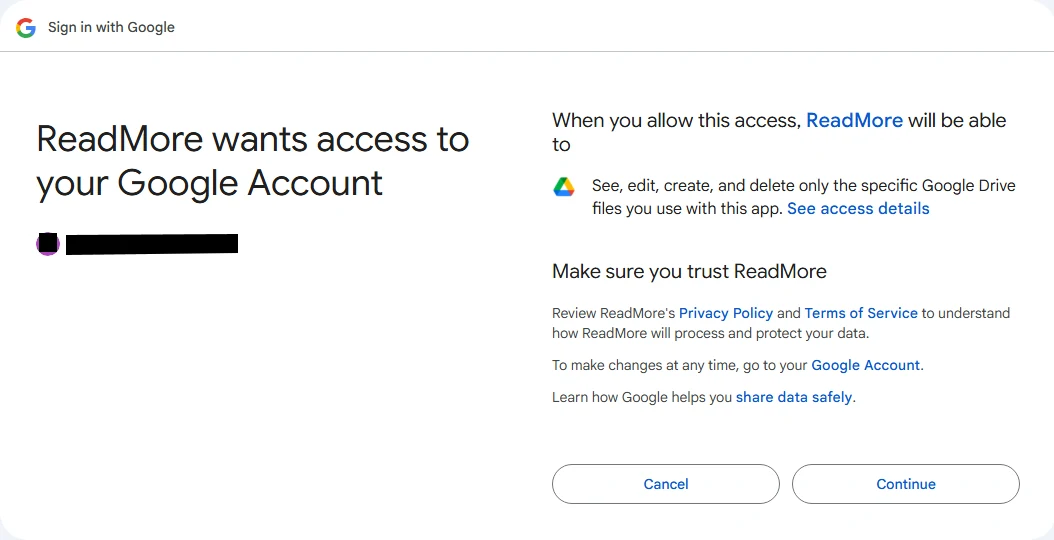
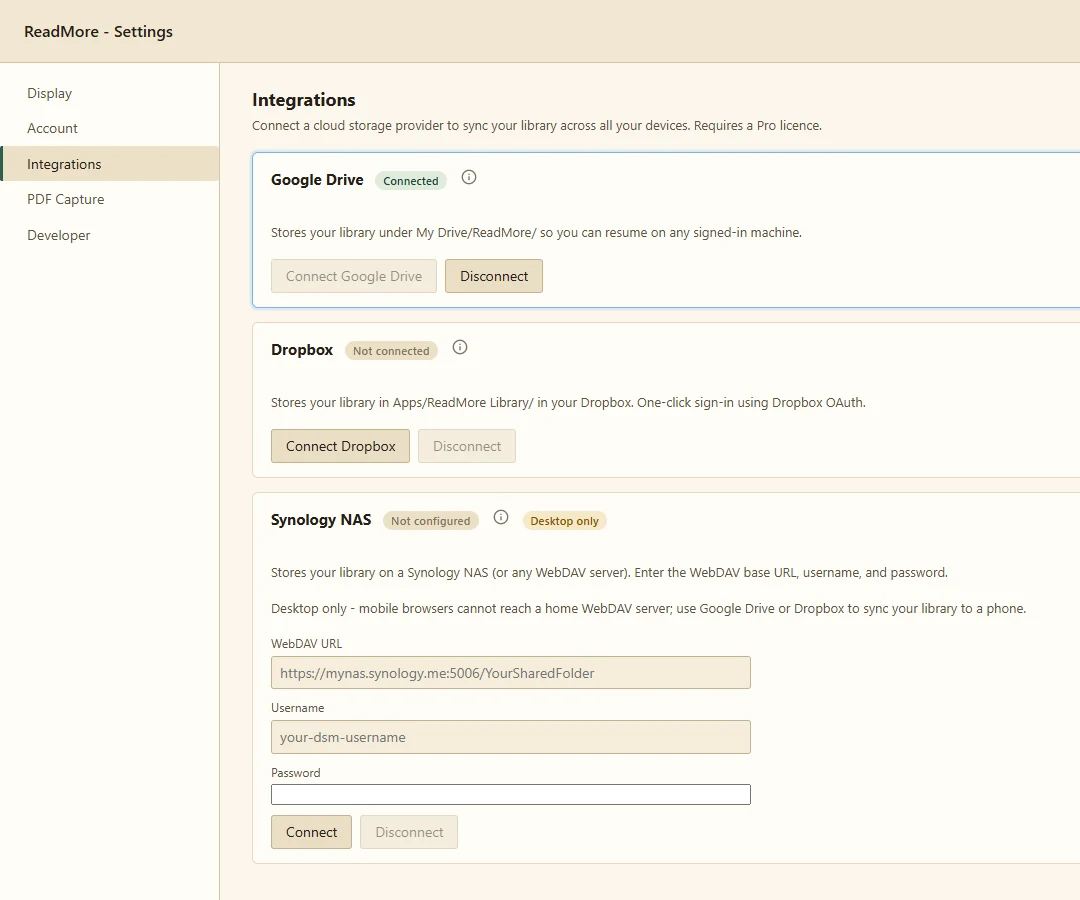
3. Confirm and you are done
The card flips to Connected and ReadMore begins syncing your existing library up to Drive.
4. Verify in Drive
Open drive.google.com and look under My Drive for a folder called ReadMore. You should see subfolders books/ and metadata/ filling up as your library syncs.
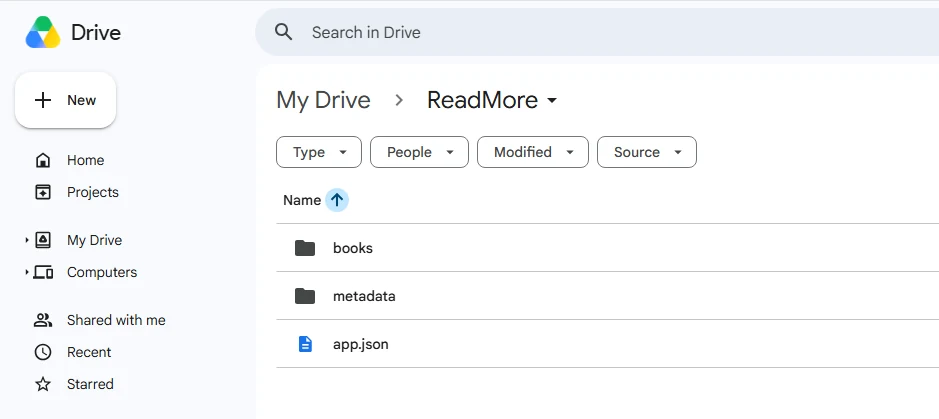
ReadMore folder in Drive with your books uploaded.Reading on a second browser
Install ReadMore on the second supported browser, open Options, click Connect on the Drive card, and sign in with the same Google account. Let the initial sync finish before opening a book.
Check Google sign-in support
Drive sign-in uses Chrome's identity support, which is not available in every Chromium browser. On Edge, use Dropbox or local storage. If your browser cannot connect Drive, use a supported storage option on both machines.
Disconnect and revoke
To stop syncing on this browser only, click Disconnect in ReadMore Options. Your whole library stays on this computer, including books you never opened here, which are downloaded first. Your files also stay in Drive. If a book's file is already missing from the cloud, there is nothing to bring over; you are told which book stayed behind.
To revoke ReadMore's access to your Google account entirely (all browsers), open your Google Account → Third-party apps & services, find ReadMore, and remove access.
Troubleshooting
"Sign-in was cancelled"
The Google window was closed before you finished. Click Connect again.
Books do not appear on the second browser
Confirm both browsers are signed into the same Google account (the same email address). Click the sync icon in the library header to force a refresh.
Read More is not affiliated with or endorsed by Google LLC. Google Drive and the Google logo are trademarks of Google LLC.