Guide
Sync your library with Dropbox
Same books everywhere, stored in a Dropbox folder that only ReadMore can see.
Dropbox is the second cross-device option in ReadMore. Unlike Drive, Dropbox scopes ReadMore to its own folder - the extension cannot see any of your other Dropbox files. This is by design.
Limited-availability during launch
Our Dropbox integration is currently in Dropbox's developer preview, capped at 500 users while their app review runs. If Dropbox is what you want, choose it and everything works normally; once we hit the cap, Google Drive or a NAS is the workaround until review clears.
What Dropbox sync gives you
- Your library lives in
Apps/Read More Library/inside your Dropbox. - ReadMore can only see files inside that folder. Nothing else in Dropbox is exposed.
- Books, metadata, labels, and reading position all sync across every browser you sign in on.
Connect Dropbox to ReadMore
1. Open the Integrations section
Right-click the ReadMore icon and choose "Options", or open the popup and click the settings cog. Click the Integrations tab.
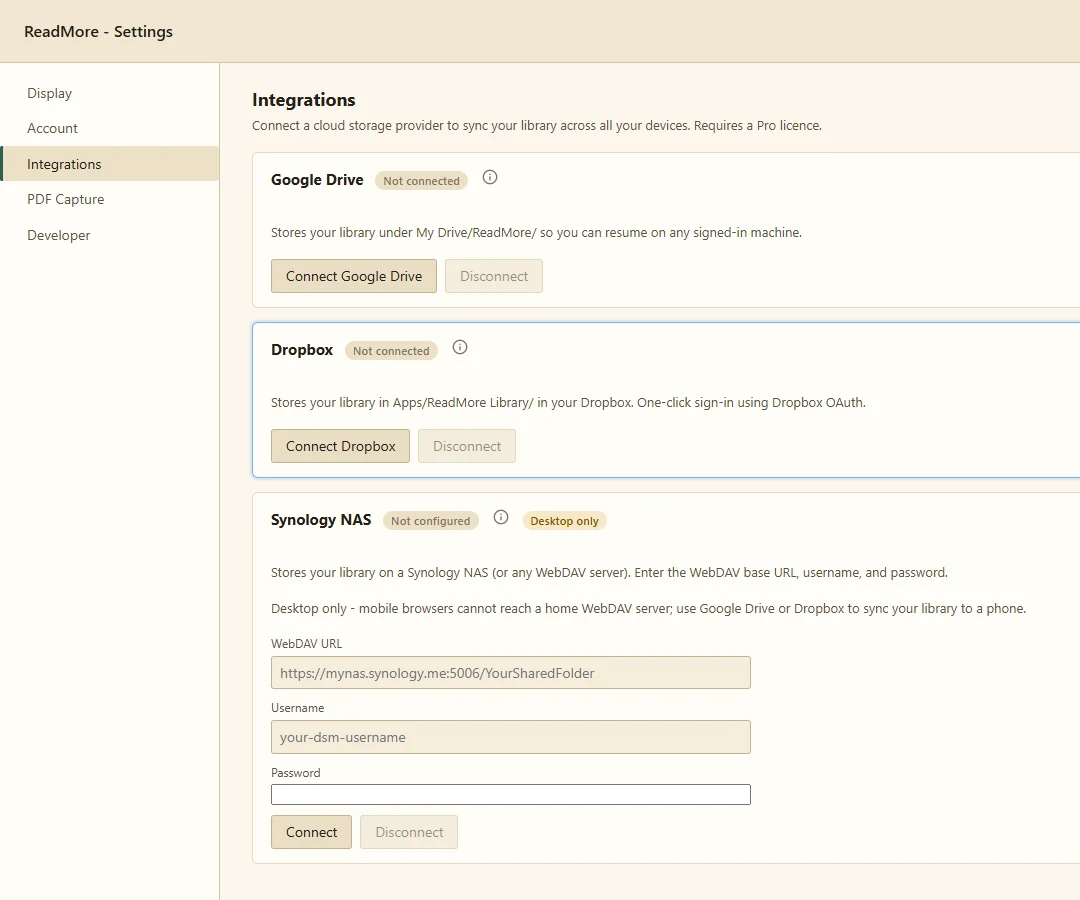
2. Click Connect
Click Connect on the Dropbox card. A Dropbox sign-in window opens.
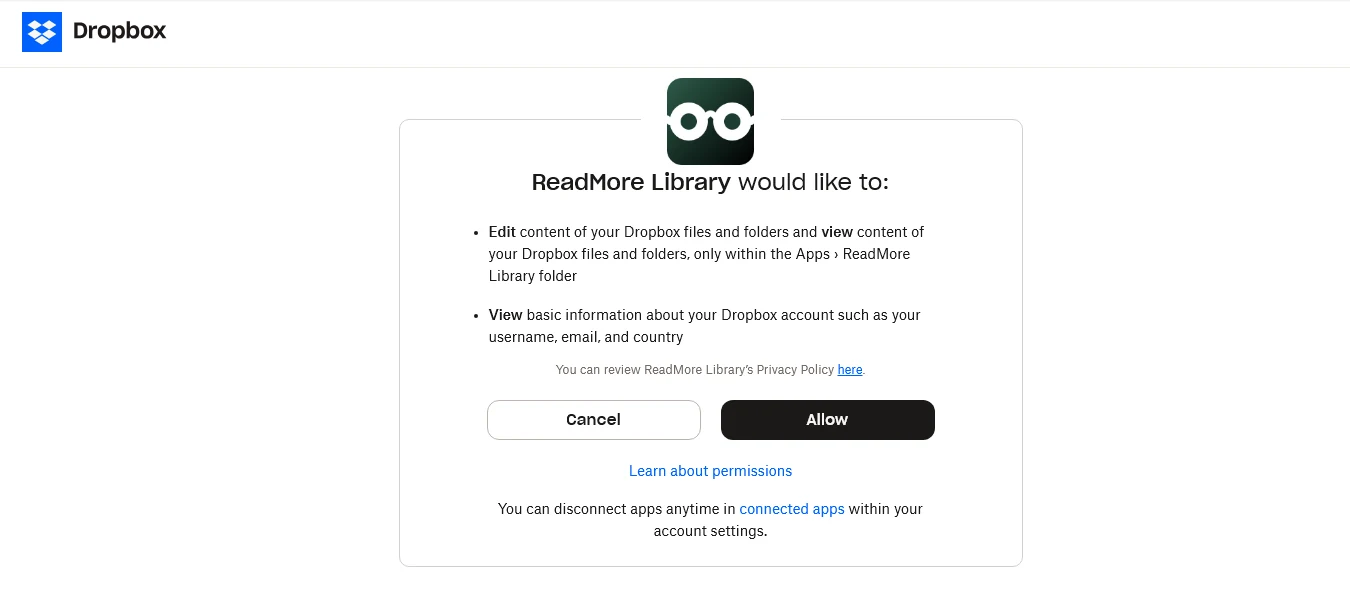
3. Confirm and you are done
The card flips to Connected. ReadMore begins uploading your library to the app-scoped folder.
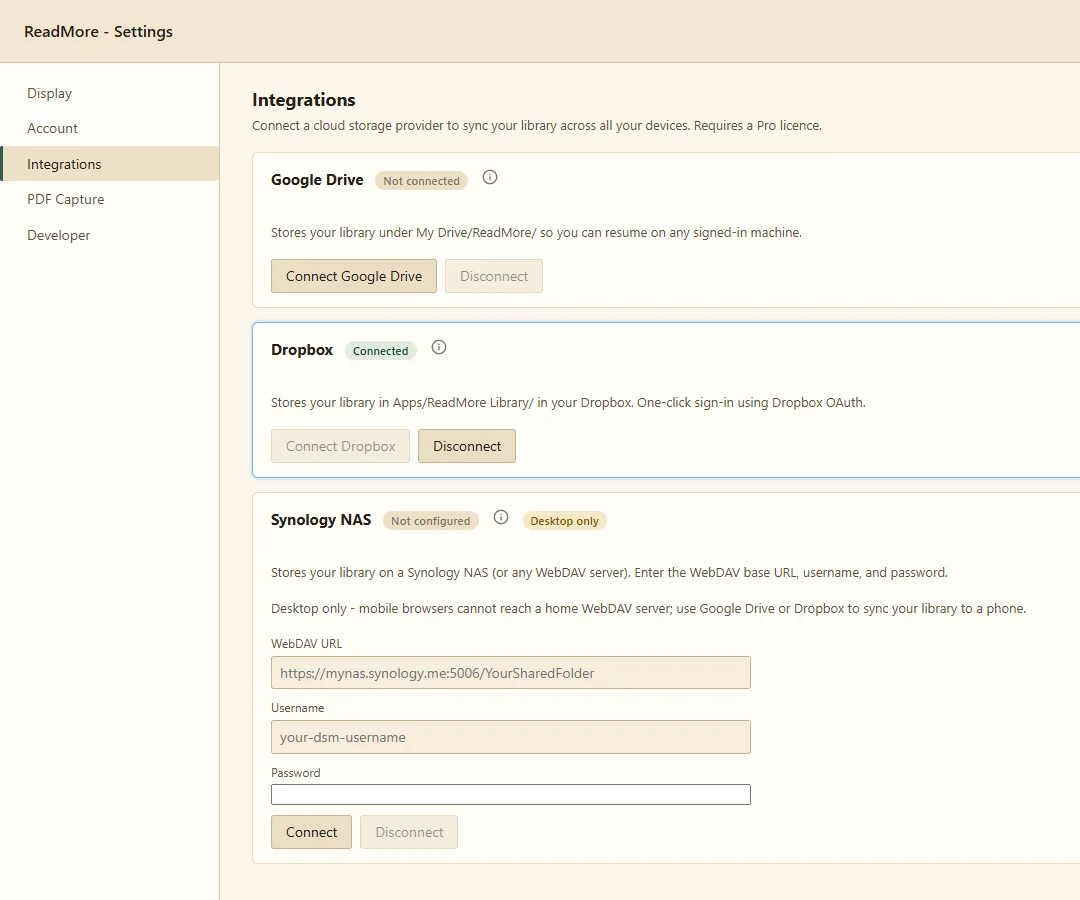
4. Verify in Dropbox
Open Dropbox on the web and navigate to Apps/Read More Library/. You should see a ReadMore/ subfolder with books/ and metadata/ inside.
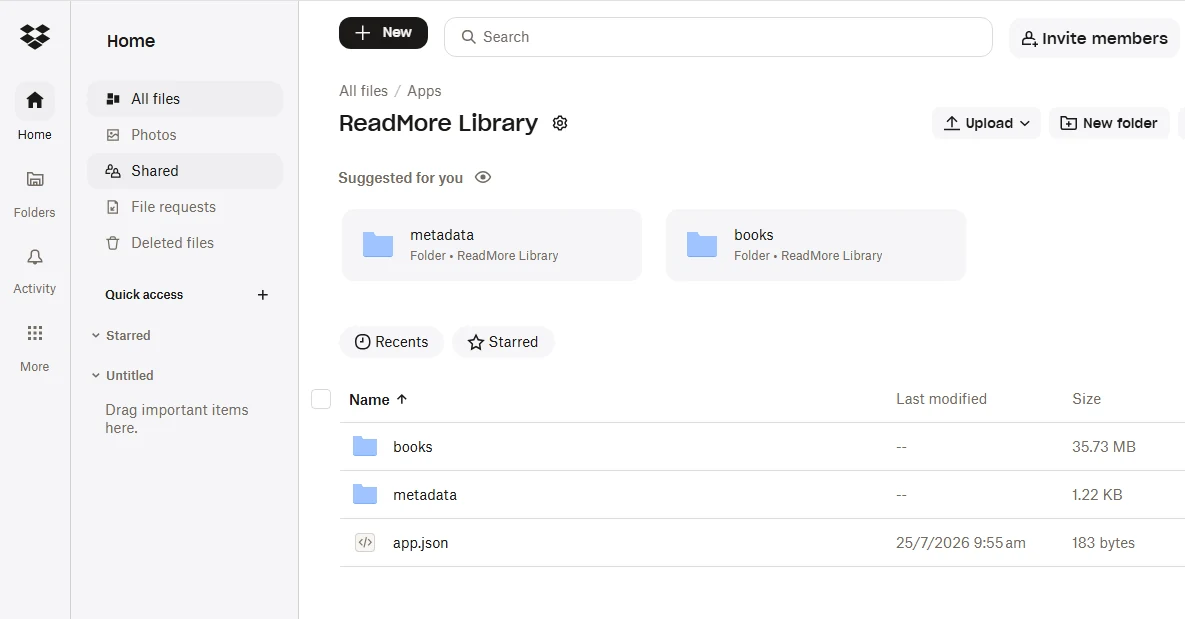
Reading on a second browser
Install ReadMore on the other browser, open Options, click Connect on the Dropbox card, and sign in with the same Dropbox account. Your library appears within seconds.
Disconnect and revoke
To stop syncing on this browser only, click Disconnect in Options. Your whole library stays on this computer, including books you never opened here, which are downloaded first. Your files also remain in Dropbox. If a book's file is already missing from the cloud, there is nothing to bring over; you are told which book stayed behind.
To revoke ReadMore's access to Dropbox entirely, open Dropbox → Settings → Connected apps, find ReadMore, and remove access.
Troubleshooting
"Sign-in was cancelled"
The Dropbox window closed before authorisation completed. Click Connect again.
"App has reached the maximum number of users"
Dropbox is enforcing the developer-preview cap. Use Google Drive or a NAS in the meantime; the cap lifts when Dropbox approves our review.
Files do not appear on the second browser
Check both browsers are signed into the same Dropbox account and click the sync icon in the library header to force a refresh.
Read More is not affiliated with or endorsed by Dropbox, Inc. Dropbox is a trademark of Dropbox, Inc.