Guide · Pro
Keep your library on your own server
Self-hosted storage for people who would rather not put their books on someone else's cloud. This is a Pro feature - Google Drive and Dropbox sync are free.
ReadMore can store your library on any NAS or server that speaks a protocol called WebDAV. That includes off-the-shelf boxes like Synology and QNAP, as well as anything you host yourself (Nextcloud, ownCloud, Apache with mod_dav, and so on). Your books never touch our servers.
What is WebDAV, in plain English?
WebDAV is a way for programs to read and write files on a remote computer over the same network protocol your browser uses. Think of it as Dropbox, but the storage lives on a computer you own instead of one someone else owns.
Which NAS boxes and servers work
Anything that speaks WebDAV per RFC 4918 will work. Common options:
| Device / server | What to enable | Notes |
|---|---|---|
| Synology DSM 7.x | Package Center → "WebDAV Server" | Walkthrough below. |
| QNAP QTS | Web File Manager → WebDAV | Configure via App Center or Control Panel. |
| Asustor ADM | App Central → WebDAV Server | Install then enable HTTPS. |
| TrueNAS SCALE | WebDAV app | Under Apps → Discover Apps. |
| Nextcloud (self-hosted) | Built in | Use the WebDAV endpoint shown in Settings → Personal → Files. |
| ownCloud (self-hosted) | Built in | Same as Nextcloud. |
| DIY: Apache or Nginx | Enable mod_dav (Apache) or nginx-dav-ext-module |
Combine with HTTPS via Let's Encrypt. |
Walkthrough: Synology DSM
The rest of this guide uses Synology DSM 7 as the concrete example. The same steps apply in spirit to other NAS boxes; screens and menu names differ.
1. Install the WebDAV Server package
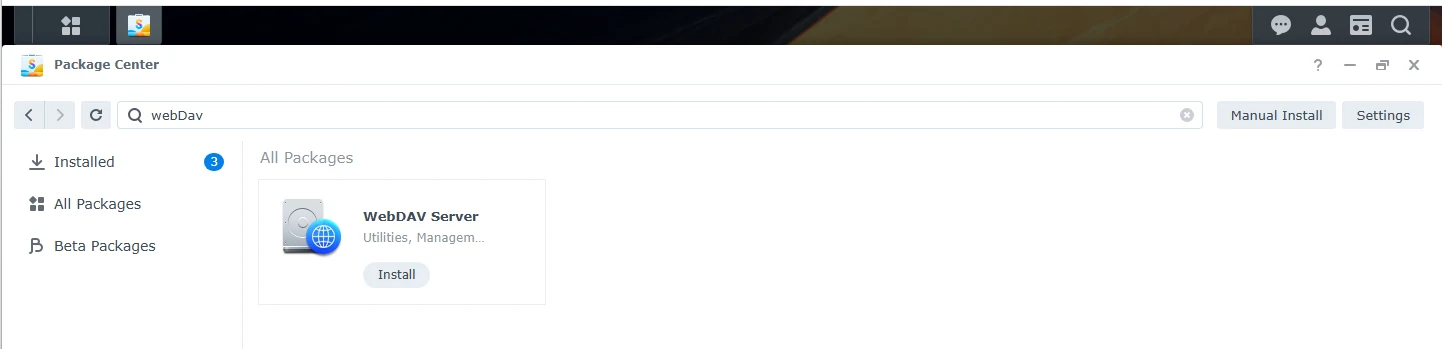
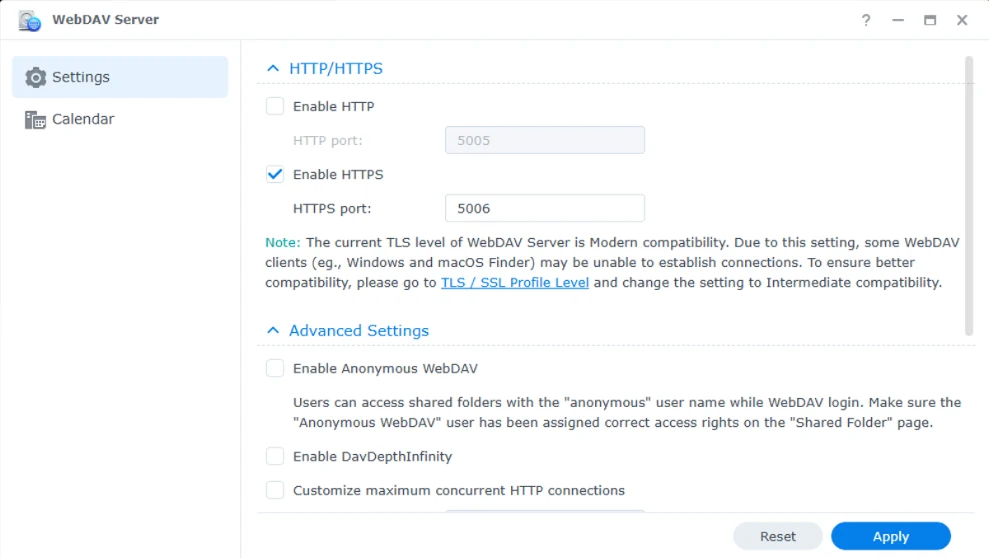
Open Package Center, search for "WebDAV Server", install and open it. Enable HTTPS on port 5006 (leave HTTP off unless you have a very good reason).
2. Create a dedicated user for ReadMore
Do not use your main DSM account. Create a new user just for ReadMore. Two reasons:
- You can grant it access to a single shared folder and nothing else.
- If those credentials are ever lost, revocation is a single click.
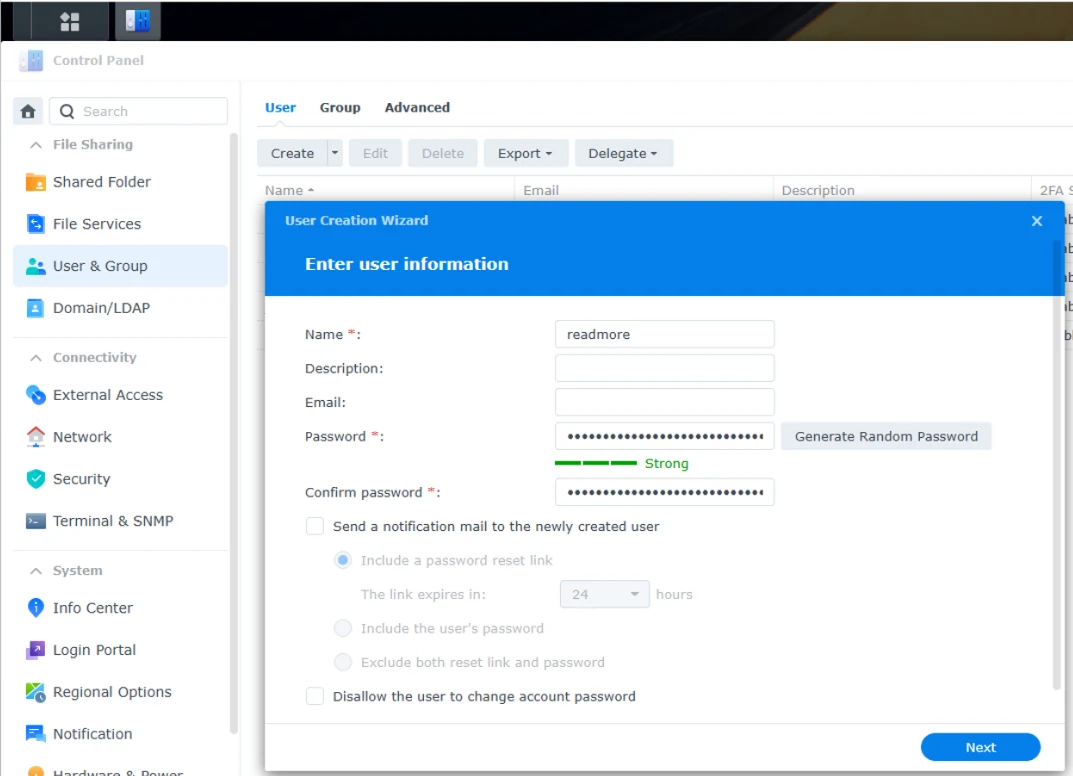
In DSM: Control Panel → User & Group → Create. Call the user something like readmore. Give it a long, unique password.
2FA does not protect WebDAV
DSM's two-factor authentication is enforced on the DSM web UI. WebDAV uses HTTP Basic auth and bypasses 2FA entirely. A dedicated user with a strong password and access to only one folder is the recommended way to limit blast radius.
3. Grant the user WebDAV access to a folder
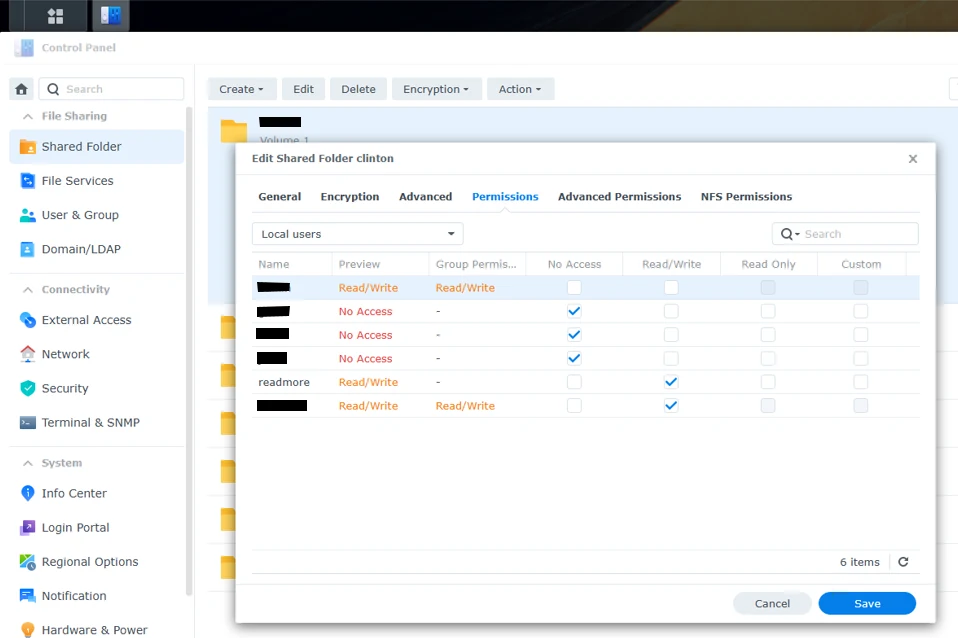
Give readmore read/write permission to a single shared folder (or its home directory). Everything ReadMore creates will live inside a ReadMore/ subfolder there.
readmore user on the chosen shared folder.4. Connect ReadMore
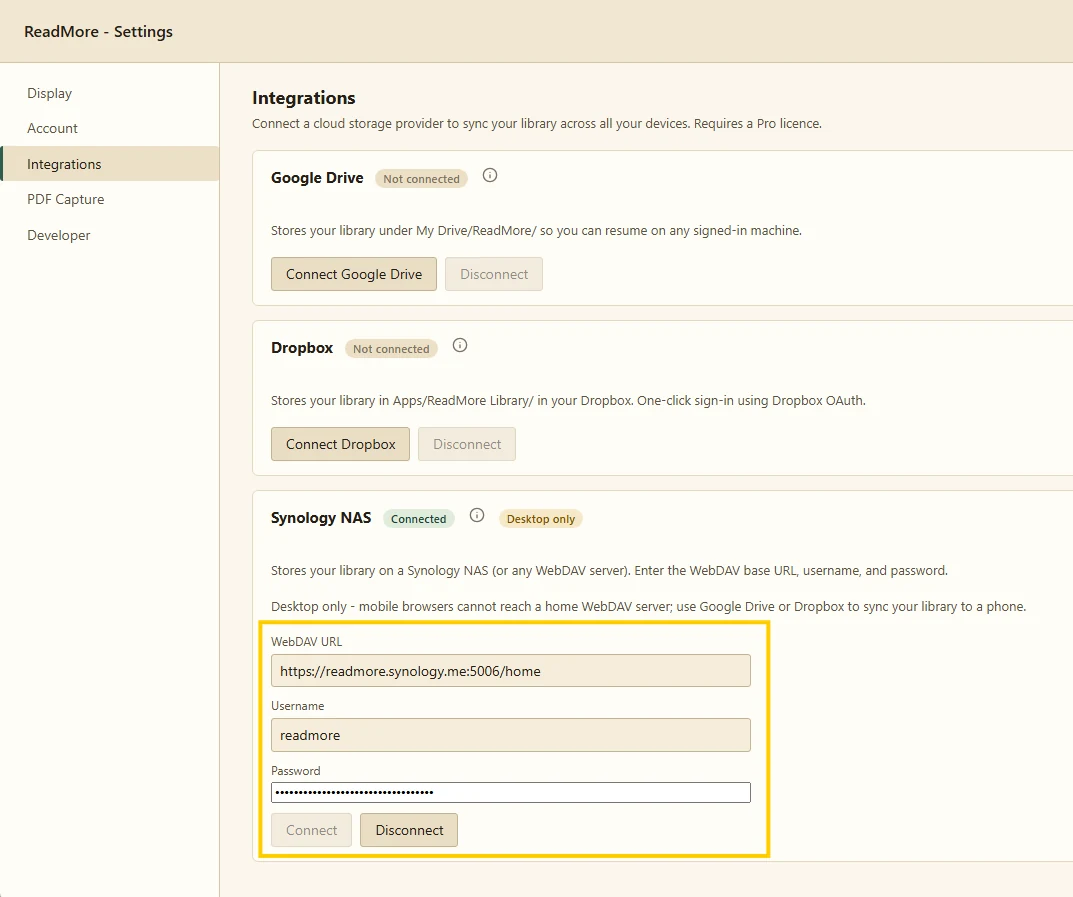
In the extension, open Options → Integrations → Self-hosted (WebDAV). Fill in:
- WebDAV URL -
https://<your-nas>:5006/<path>where<path>is an existing shared folder the WebDAV user has access to (e.g./homeif you enabled user-home service, or/documentsif you granted access to a shared folder called "documents").
Do not invent a folder name here, and do not type/ReadMore. DSM 7 enables WebDAV per shared folder, so a path that isn't a real shared folder is served by plain Apache instead - every request comes back405 Method Not Allowed. ReadMore creates its ownReadMore/folder inside whatever you point at, so/ReadMorewould give you/ReadMore/ReadMore/even on a NAS where it worked.
Do not append/dav2either - that's a DSM 6 convention that DSM 7 does not serve, and it fails the same way.
Anhttp://address also works, for a server without a certificate, but Read More shows a warning under the field: without https your password and books cross the network unencrypted. Use https whenever your server offers it. - Username - the dedicated user you just created.
- Password - that user's password.
Click Connect. Chrome will pop up a permission dialog asking to grant ReadMore access to your NAS host - accept it. Without this grant, Chrome enforces CORS on the WebDAV request and the connection fails silently.
5. Verify
Add a book from the popup, then open File Station on your NAS. You should see:
ReadMore/books/<id>.pdfor.epub- the book itself.ReadMore/metadata/<id>.json- the bookmarks and reading position.ReadMore/app.jsonandReadMore/user_settings.json- your labels and settings.
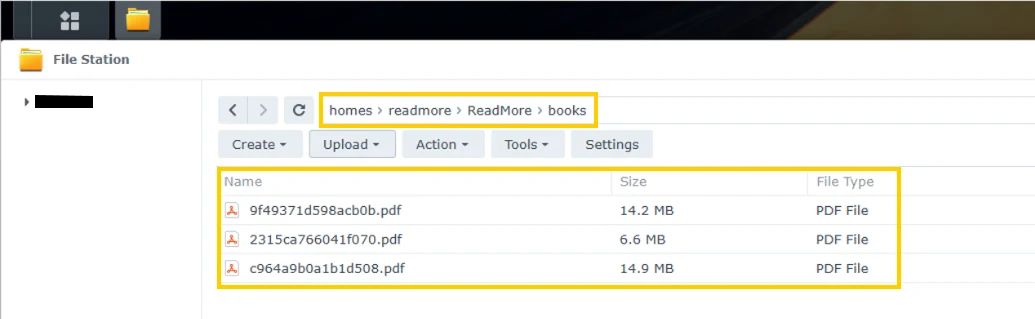
ReadMore/ folder structure with books uploaded via WebDAV.Where your files land
ReadMore always creates and uses a folder called ReadMore/ at the path you point the WebDAV URL at. So if your URL is https://your-nas:5006/home, your library ends up in /home/ReadMore/ (which File Station shows as homes/<your-user>/ReadMore/). If you point at a shared folder documents, it lives at /documents/ReadMore/. There is no folder picker - the URL is the location.
This is why the URL must name a folder that already exists: ReadMore adds the last path segment itself, and it cannot create a shared folder over WebDAV even if you ask it to.
Troubleshooting
"Credentials rejected (401)"
The username or password is wrong for that WebDAV endpoint. Check the user actually has WebDAV service permission (Control Panel → User & Group → the user → Applications).
"Cannot reach server"
The URL is wrong, the WebDAV Server package is not running, or a firewall is blocking the port. Test the URL in a plain browser: https://your-nas:5006/ should return an authentication prompt.
"... is not a WebDAV endpoint"
The URL points at a path DSM serves via plain Apache instead of the WebDAV Server package. Most commonly caused by an extra /dav2 in the URL (DSM 6 convention that DSM 7 dropped). Remove any path suffix and use the shared-folder path directly, e.g. https://your-nas:5006/home or https://your-nas:5006/<sharedFolderName>.
"... is not a WebDAV-enabled folder"
The URL reaches your NAS and the credentials are fine, but the path you gave isn't a shared folder DSM serves over WebDAV - so ReadMore can't create its folder there. Two common causes:
- You pointed at the server root (
https://your-nas:5006with no path). The root only lists your shared folders; WebDAV is enabled inside each one, not at the top. Add a shared folder to the URL. - You typed a folder name that doesn't exist yet, such as
/ReadMore. ReadMore can't create a shared folder over WebDAV. Either use a folder that already exists (/homeis the easy one), or create the shared folder in Control Panel → Shared Folder first and grant your WebDAV user read/write on it.
If sync worked before and broke after you edited the URL, check File Station for a stray empty ReadMore/ folder in the old location.
"Host permission not granted" / silent CORS failure
Chrome only lets the extension talk to hosts you've explicitly approved. If you declined the permission dialog or the Connect flow errored before it showed, click Connect again and accept the prompt. If Chrome doesn't offer the prompt at all, revoke and reconnect: right-click the ReadMore toolbar icon → Manage extension → Site access, remove the NAS host, and try Connect once more.
Certificate warnings
DSM ships a self-signed certificate. Browsers reject self-signed certificates for security reasons. Either install a real certificate (DSM → Control Panel → Security → Certificate - free via Let's Encrypt) or accept the certificate manually in your browser first, then connect.
Backing up your NAS is your job
ReadMore does not create a second copy of your library anywhere. Whatever backup strategy you use for the rest of your NAS covers your ReadMore data too.
Read More is not affiliated with or endorsed by Synology Inc., QNAP Systems, ASUSTOR, iXsystems (TrueNAS), Nextcloud GmbH, or the Apache Software Foundation. Product names and trademarks referenced above are the property of their respective owners.